

Top iOS Simulators for Windows: What Actually Works in 2026

Running iOS apps on a Windows machine has always been a bit awkward. Apple builds its tools for macOS first, and Windows users are usually left looking for workarounds. Still, developers, testers, students, and even curious users keep asking the same question: is there a reliable way to simulate iOS on Windows?
The short answer is yes, but with limitations. Some tools are built for serious development and testing. Others are more about demos or visual exploration. In this guide, we break down the best iOS simulators and emulation options available for Windows today, explain what each one is actually good for, and help you decide which setup makes sense for your use case.
What an iOS Simulator Really Is
An iOS simulator is software that mimics the iOS environment without recreating the underlying hardware. Instead of emulating an actual iPhone chip or sensors, it focuses on how iOS behaves at the software level. That makes simulators faster and easier to run than full hardware emulators, but also more limited.
Because of that, most simulators do not fully support hardware-specific features like Bluetooth, advanced camera functions, or real GPS behavior. They are best suited for early development, interface testing, and general workflow checks rather than final production testing.
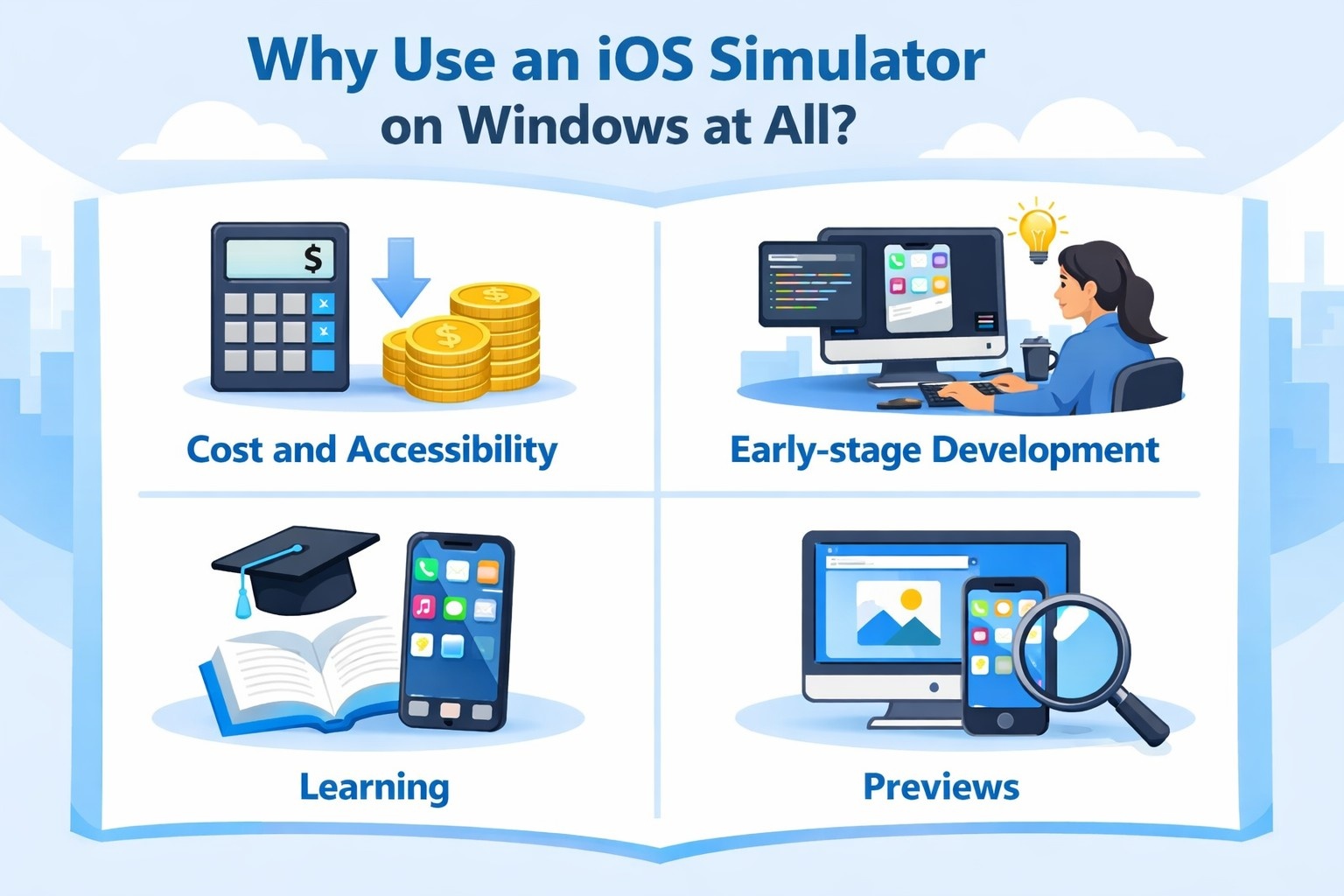
Why Use an iOS Simulator on Windows at All?
There are several practical reasons why people still look for iOS simulators on Windows, even with the known constraints.
- Cost and accessibility. Not everyone wants to buy a Mac or multiple Apple devices just to explore iOS or test an idea. Simulators provide a lower-cost entry point.
- Early-stage development. Developers often want to validate layouts, navigation flows, and basic logic before moving to real devices.
- Learning and experimentation. Students and beginners can explore how iOS works without committing to Apple hardware upfront.
- Demos and previews. Some simulators make it easy to show an app to clients or stakeholders without installing anything locally.
That said, no Windows-based simulator fully replaces testing on real iPhones or iPads. Think of these tools as helpers, not final checkpoints.

From Development to Release Without Surprises With OSKI
At OSKI, we help teams set up that full path. We design, develop, deploy, and maintain software across mobile, web, cloud, and AI, so iOS development does not sit in a separate bubble. When Windows is the daily environment, we build a practical setup that uses the right simulators and cloud tools early, then transitions smoothly into real-device testing, CI/CD, and production-ready delivery.
What Sets Our Approach Apart
- Cross-platform development that reduces duplicated effort
- Cloud and DevOps setups that support scalable testing
- Strong frontend and UI/UX focus for realistic validation
- AI integrations that improve automation and decision-making
Teams usually come to us when they need more than a tool recommendation. They need a partner who understands where simulators help, where they do not, and how to build systems that hold up beyond the testing phase.
iOS Simulator vs Emulator: A Quick Clarification
These terms are often used interchangeably, but they are not the same.
- Simulators recreate the iOS software environment.
- Emulators attempt to replicate both software and hardware behavior.
Most tools available on Windows fall into the simulator category. Full iOS emulation is rare, complex, and usually reserved for specialized security or research tools.
The Best iOS Simulators for Windows in 2026
Below are the most practical and widely used options available today, each with its own strengths and tradeoffs.

1. Appetize.io
Appetize.io skips local installation entirely. iOS apps run in the browser, streamed from the cloud. This makes it one of the fastest ways to open an iOS app on a Windows machine without setup friction.
It is commonly used for demos, QA reviews, onboarding sessions, and quick functional checks. Teams often share links with clients or testers who do not have Apple devices.
Key Advantages
- No installation or local configuration
- Works on any modern browser
- Easy to share apps with clients or teammates
What to Watch Out For
- Free usage is limited
- Performance depends on internet quality
- Not suited for low-level debugging or hardware testing

2. Smartface
Smartface is aimed squarely at professional developers. It provides a structured environment for building and testing iOS apps on Windows, with strong support for cross-platform workflows.
One of its biggest strengths is iteration speed. Live reload, remote testing, and cloud collaboration make it easier to catch issues early and adjust without constantly switching devices or systems.
Key Advantages
- Solid debugging and testing tools
- Supports both iOS and Android development
- Cloud-based collaboration for distributed teams
What to Watch Out For
- Steep learning curve for beginners
- Full functionality requires a paid plan
- Performance depends on hardware specs

3. BrowserStack App Live
BrowserStack is not a simulator in the traditional sense. Instead, it gives you remote access to real iOS devices through the browser. You interact with actual iPhones hosted in the cloud.
This makes it useful for cross-device testing, visual checks, and reproducing bugs that only appear on specific models or iOS versions.
Key Advantages
- Access to real iOS devices
- No local setup required
- Reliable for UI and compatibility testing
What to Watch Out For
- Requires a paid subscription
- Not ideal for long development sessions
- Internet connection directly affects responsiveness
4. Running Xcode via macOS Virtual Machine
Using macOS in a virtual machine and installing Xcode remains the closest experience to native iOS development on Windows. You get Apple’s official simulator and tooling.
That said, it comes with real tradeoffs. Setup is complex, performance can lag, and Apple’s licensing terms limit where macOS is allowed to run.
Key Advantages
- Access to Apple’s official iOS Simulator
- Familiar workflow for iOS developers
- Useful for learning and experimentation
What to Watch Out For
- Complicated setup process
- Requires powerful hardware
- Potential licensing and legal concerns

5. Corellium
Corellium is built for advanced use cases. It offers full iOS virtualization in the cloud and is widely used by security researchers, enterprise QA teams, and reverse engineering specialists.
This is not a casual tool. It shines when deep system access and detailed inspection matter more than simplicity.
Key Advantages
- High-fidelity iOS virtualization
- Supports many iOS versions and devices
- Strong tools for security and system analysis
What to Watch Out For
- Expensive pricing
- Steep learning curve
- Overkill for standard app development

6. .NET MAUI iOS Simulation Ecosystem
.NET MAUI is Microsoft’s modern replacement for Xamarin, offering a unified framework for building cross-platform apps, including iOS. Instead of relying on the old Xamarin iOS Previewer, developers now use MAUI’s tools together with the Remote iOS Simulator for Windows to preview and interact with iOS layouts during development.
Key Advantages
- Accurate and up-to-date UI rendering
- Integrated with Visual Studio
- Supports hot reload for faster iteration
- Works seamlessly with the Remote iOS Simulator
What to Watch Out For
- Still requires a networked Mac for full builds and debugging
- Not a true standalone iOS simulator on Windows
- Some advanced iOS features may not preview perfectly

7. iPadian
iPadian focuses on visual familiarity rather than real simulation. It presents a Windows app that looks like iOS but does not run real iOS apps.
It can be useful for users who simply want to explore the interface or demonstrate basic navigation concepts.
Key Advantages
- Easy to install and use
- Simple interface
- Useful for basic visual exploration
What to Watch Out For
- Not a real iOS environment
- No App Store or real apps
- Not suitable for developers

8. Flutter iOS Preview (via Flutter DevTools)
For teams using Flutter, iOS previews can be viewed on Windows through Flutter DevTools. While not a full simulator, it allows developers to validate layouts and interactions early in the build process.
This is useful when iOS support is planned but macOS access is limited.
Key Advantages
- Works directly from Flutter projects
- Fast UI iteration
- No Mac required for early previews
What to Watch Out For
- Not a full iOS simulation
- Limited hardware behavior
- Final testing still requires Apple devices
What You Cannot Do with Windows iOS Simulators
It is important to be clear about the limits of any iOS simulator running on Windows. These tools can help with learning, early testing, and basic validation, but they do not replace Apple’s official development environment.
You cannot publish iOS apps without using Apple’s tools on macOS. App Store submissions still require Xcode, and there is no supported way around that requirement. Hardware-specific testing also remains out of reach. Features that depend on real devices, such as advanced camera behavior, sensors, or Bluetooth interactions, must be tested on actual iPhones or iPads.
In practice, Windows-based simulators are best used during the early stages of development. They help catch layout issues, logic problems, and workflow mistakes before moving to real devices. Final testing and release, however, still belong firmly in Apple’s ecosystem.
How to Choose the Right Option for Your Needs
- If you are learning or just exploring iOS. Visual tools like iPadian or Air iPhone are usually enough. They do not run real apps, but they help you understand basic navigation and layout without technical setup.
- If you need quick demos or client previews. Browser-based platforms such as Appetize.io or BrowserStack work well. They let you open and share an app instantly, which is useful for reviews, presentations, or early feedback.
- If you are actively developing an app on Windows. Smartface or framework-based preview tools make more sense. They support structured testing, faster iteration, and cross-platform workflows, even though final testing still requires Apple hardware.
- If you work with UI validation only. Flutter or .NET preview tools are helpful for checking layouts and interactions early, before moving to real devices or macOS.
- If you need deep testing or security analysis. Corellium is built for this level of work. It offers detailed system access and multiple iOS versions, but comes with higher cost and complexity.
- If you want the closest experience to native iOS tools. Running Xcode through a macOS virtual machine is the most realistic option on Windows, but it requires powerful hardware, careful setup, and awareness of licensing limits.
Choosing becomes much easier once you focus on what part of the workflow you are trying to support, instead of expecting one tool to cover everything.
Conclusion
In 2026, running iOS simulations on Windows is still possible, but it requires realistic expectations. There is no perfect substitute for a real Mac and physical Apple devices, but the tools available today can save time, reduce costs, and support early development, learning, and demonstrations.
Used correctly, iOS simulators remain a valuable part of a Windows-based workflow. The key is choosing the tool that fits your goal, not forcing one tool to do everything.
FAQ
Can you run iOS apps on Windows without a Mac?
You can preview or test iOS apps on Windows using simulators, cloud platforms, or remote devices, but you cannot fully replace a Mac. Publishing apps and using Apple’s official tools still requires macOS.
Is there a real iOS emulator for Windows?
Not in the traditional sense. Most tools available on Windows are simulators or cloud-based solutions. They mimic iOS behavior but do not fully emulate Apple hardware.
Which option is best for beginners?
If the goal is to explore the iOS interface or understand basic navigation, visual tools like iPadian or Air iPhone are the easiest starting points. They require minimal setup and no development experience.
What is the best choice for quick app demos?
Browser-based platforms such as Appetize.io or BrowserStack are usually the fastest option. They allow you to share app access instantly without installation.
Can I test real iOS devices from Windows?
Yes, some cloud platforms provide access to real iPhones through a browser. This is useful for UI checks and compatibility testing, but performance depends on your internet connection.
Do iOS simulators support all device features?
No. Hardware-related features like advanced camera behavior, sensors, and Bluetooth typically require physical devices and are not fully supported by simulators.


